NotebookLM Video Watermark Remover
- Gamma Watermark Remover
- NotebookLM Watermark Remover
- NotebookLM PPT Watermark Remover
- NotebookLM PDF Watermark Remover
- All formats
NotebookLM Video Overviews are slide-style narrated videos with the NotebookLM mark in the bottom-right corner. Drop the MP4 here: the tool samples five frames to find the pixels of the mark (the parts that stay the same while the slides change), rebuilds those pixels on every frame, and copies the narration track unchanged. Processing runs in Chrome or Edge with WebCodecs, on your device.
Opening and previewing is free; a download counts as one export. Check that nothing is uploaded
Your file in, a clean corner out
Choose a watermark type on the left and the box moves on this sample slide.
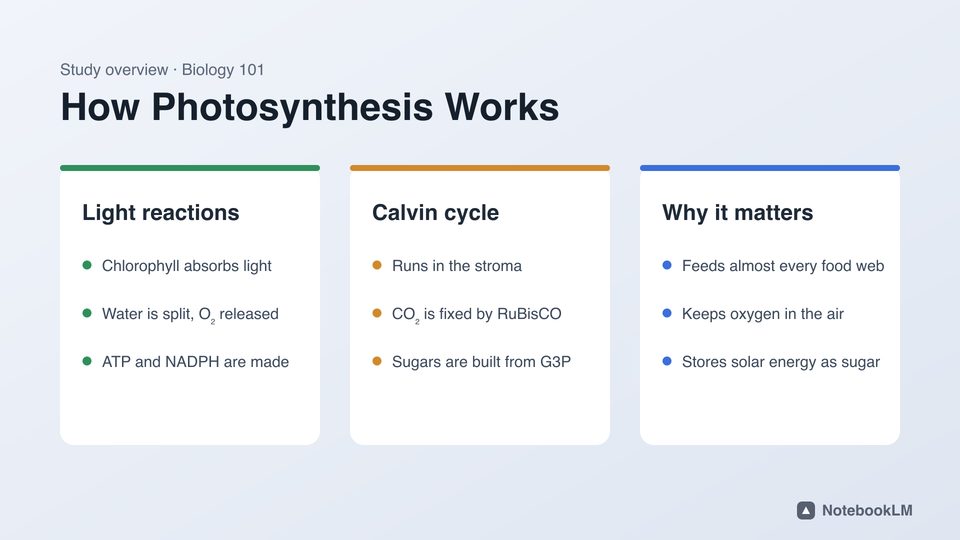

Before

After
The corner of this sample, before and after, cleaned by the same engine.
Before and after


The sample slide, start to finish
Recorded in this tool: open the sample, check the box, remove the mark, compare. Seven seconds, and nothing leaves the browser.
How it works on video
- Five frames across the clip are read in your browser.
- In each frame, the corner box is compared with its background; pixels that stand out in at least three of the five frames are the watermark. Slide content that changes from scene to scene is not counted.
- Every frame is decoded with WebCodecs, the same mark pixels are rebuilt from their neighbours, and the frame is encoded again at about 1.3× the source bitrate.
- The audio track is passed through bit for bit, so the narration sounds the same.
Steps
- Download the Video Overview from NotebookLM as MP4.
- Open this page in desktop Chrome or Edge and drop the MP4.
- Check the frame preview: the box sits on the mark and the enlarged corner shows the result. Drag it if your mark is elsewhere.
- Press Remove watermark, keep the tab open while it runs, then download the clean MP4.
Good to know
- Some Video Overviews end with a short branded end screen. That is a whole scene, not a corner mark; trim it in any video editor.
- The output is a newly encoded MP4 with the same resolution, frame rate and audio.
- Only MP4 is supported. If you have a WebM or MOV, convert it to MP4 first.
- The invisible SynthID watermark, if present, is not changed.
Questions
Is the audio kept?
Yes. The audio samples are copied into the new file without re-encoding.
Which browsers work?
Recent Chrome or Edge on a computer. Video needs the WebCodecs API; Safari and phones may not support encoding.
How long does a 5-minute Video Overview take?
Usually a few minutes on a laptop, since every frame is decoded and encoded again locally. Keep the tab in front while it runs.
Does the video get uploaded?
No. Decoding, cleaning and encoding all happen in your browser tab. The server only counts the export.
Does one video count as one export?
Yes, whatever its length. Two exports a day are free; Pro is unlimited.